Languages

Friday, September 13, 2013

Como parar com SPAM da sua operadora de celular


Cara! esses spams que tenho recebido da minha operadora (vivo) estão se tornando completamente sem noção!

Tem mensagem chegando de madrugada me acordando, mensagens com promoções de jogos, mensagens de ringtone, AFF!


Foi aí que descobri que uma resolução da Anatel de 2012 determina que as operadoras parem de enviar SPAM para os clientes que assim solicitarem.


Existem duas formas de solicitar isso, envie uma SMS com a palavra SAIR para o numero de sua operadora, no caso Claro (888), Oi (55555), TIM (4112) e Vivo (457).


Ou então ligue no serviço de atendimento e diga que você não quer mais receber SPAM, eles são obrigados a parar, caso não parem você pode ligar na Anatel (1331) com o protocolo do seu pedido e registrar uma denúncia.


E para fazer jus ao clima nerd deste blog, aqui o vídeo do episódio de Monty Python que deu origem a palavra SPAM (no contexto dessa coisa chata):


Debugging on PhpStorm

PhpStorm is a great IDE for php development, it is powerful, light and fully featured.
Actually I am a fan of all JetBrains IDEs, these guys know exactly what developers want.
It is quite simple to configure it so you can debug your php code, you can add breakpoints, stop code execution, analyze variables. Debugging gives you a whole new level of help while developing. So here's how to do it:

1- Open your php.ini located in your php installation folder.
2- Add the following code, changing folders to your actual php location, this example is for xampp on windows:

[XDebug]
zend_extension = "C:\xampp\php\ext\php_xdebug.dll"
xdebug.profiler_append = 0
xdebug.profiler_enable = 1
xdebug.profiler_enable_trigger = 0
xdebug.profiler_output_dir = "C:\xampp\tmp"
xdebug.profiler_output_name = "cachegrind.out.%t-%s"
xdebug.remote_enable = 1
xdebug.remote_handler = "dbgp"
xdebug.remote_host = "127.0.0.1"
xdebug.remote_port = 9000
xdebug.trace_output_dir = "C:\xampp\tmp"

OBS: under linux or mac, xdebug will be a .so file under /etc/php/extensions folder

3- Restart apache on xampp, this enables Xdebug

If you have trouble enabling Xdebug like this or don't have xdebug installed yet you can use the phpinfo() output to auto-build a config step-by-step for you here: http://xdebug.org/wizard.php

Now for Phpstorm configs:

4 - File > Settings
5- Go to Project Settings > PHP
6 - click ... On the side of the interpreter then + sign
7- Name = Php
8- PHP Home = your php home, ex: C:\xampp\php
9- Debugger = Xdebug
10- Click OK to close dialogs

11- Now go to Run > Debug... > Edit Configurations
12- + sign > PHP Web Application > click ... On the side of server
13- Name = Xdebug, host = your url ex: localhost
14- OK to close dialogs
15- At the toolbar, next to the bug button there is a telephone with a bug next to it and a block sign, click it to enable debugging
16- place a breakpoint in your code by clicking the line number on the left
17- now click the bug icon to start your browser and kill those bugs =)


Monday, September 9, 2013

Fechando todos os processos automaticamente antes de começar um jogo

Você já esteve tão puto com o lag nos seus jogos que saiu balançando um cactus por aí?


Bom, eu já!

Sempre quando estou jogando no computador algum processo estúpido agarra minha CPU e joga ela na merda! O Java por exemplo possui um detector que identifica o momento mais crucial do seu jogo para só então começar a atualizar automaticamente.

A solução para isso que eu sempre adotei foi de abrir o gerenciador de tarefas e matar tudo que aparecer por lá, Matar! Matar! Matar!

E somente então, só para garantir, eu clicava com o botão direito sobre o processo do meu jogo e colocava a prioridade dele como máxima.

Depois de algum tempo, decidi construir um script bat para matar todos os processos desnecessários, deixando apenas o essencial, e coloquei ele no meu desktop, assim posso rodar sempre antes de iniciar um jogo.

Também fiz algo especial nele, se você arrastar um arquivo exe para cima dele e soltar, ele ira matar todos os processos como de costume, mas depois irá iniciar aquele exe com prioridade alta!

E hoje estou compartilhando este pequeno porém útil script com você! Divirta-se...


Devidos créditos vão para Bharat Balegere do AgniPulse.com pela primeira versão deste bat

How to solve iPhone not syncing via Wi-Fi

Some time ago I faced this problem, I wanted to sync my iPhone via Wi-Fi with a windows computer over iTunes, I know iTunes and iPhone have this feature, but even doing everything necessary, it never worked!

As soon as I took my phone out of the cable it could not see my computer on the network anymore and neither my computer did.


What I noticed is that when I closed iTunes, stopped the "Apple Mobile Device" service and started it again my iPhone got instantly detected!

It's too bad that Apple can't fix this, iTunes already had so many updates and yet this problem continues!

The workaround was to build a script that, after my computer started up, it restarted this service and just then launched iTunes.

Here is the script, you can set it to run on boot by placing it in the startup folder under start menu.

If you do not want to run iTunes on boot you can remove the iTunes.exe line before the last one:

https://sites.google.com/site/thinkhackerblog/itunes.zip?attredirects=0&d=1


Sunday, September 8, 2013

Como baixar legendas automaticamente ao terminar o torrent

EDIT: Eu criei um tutorial passo a passo de como instalar o Legender e programar o uTorrent para baixar automatico as legendas para leigos, acesse: http://thinkhacker.blogspot.com.br/2014/05/como-baixar-legendas-automaticamente-ao.html

---------------

Um belo dia eu fiquei de saco cheio de ter que procurar a legenda pra cada um dos filmes que eu baixava, isso me tomava tanto tempo que eu já estava desistindo de ver filmes no pc e ficava apenas no netflix.

Esse plano já não funcionou mais quando eu comprei minha TV 3D, já que o netflix não oferece ainda esta categoria. Precisei achar uma forma mais fácil de legendar os filmes..

Foi aí que encontrei o legendasbrasil - http://www.legendasbrasil.com.br/um site que tem um aplicativo muito útil, para baixar as legendas direto do seu shell (clicando com botão direito no filme). 

A grande vantagem dele, além da praticidade, é que ele usa uma hash do filme para procurar, então a precisão dos resultados é muito superior pois você estará baixando uma legenda testada e que funciona com aquele exato vídeo.

Não deu muito tempo até que eu criasse preguiça de ir lá no meu pc para clicar no filme e mandar baixar legenda. 

E foi quando eu tive a idéia de usar linha de comando para baixar, assim eu poderia configurar o meu aplicativo de torrent favorito (o utorrent) para rodar esse comando automaticamente quando terminasse um download.

Isso não foi tão fácil quanto parecia, aparentemente o legendasbrasil não possui uma forma de rodar por linha de comando, então o máximo que eu conseguia fazer era abrir o tal wizard dele e ter que clicar em próximo próximo próximo toda vez!

Foi aí que eu comecei a analizar o tráfego com o wireshark, na intenção de entender como ele fazia para baixar as legendas. Após ver direito como funcionava o protocolo do legendasbrasil eu fiz um igual, só que de linha de comando, para baixar a melhor legenda instantaneamente, sem passar por todo aquele processo desnecessário.

E eis que vos apresento o legender, o nome é uma reles brincadeira do nome legenda em português, transformado para verbo, em inglês.

Sem demais baboseiras, ele funciona assim:

- Substitui o programa de wizard original, o perfectmatch.exe, por um que baixa a legenda direto sem fazer perguntas.

- Além disso tem um aplicativo de auxilio, o legender.exe, que facilita rodar em linha de comando e deve ser colocado no mesmo diretório do perfectmatch.

Para usar ele: legender.exe [arquivo_de_filme1] [arquivo_de_filme2] ...

- Criei também um legenddir.bat, que ao invés de um arquivo de filme, recebe um diretório. Ele roda o legender em todos os arquivos de um diretório, é esse que você vai usar no utorrent por exemplo.
Essa versão do legender so funciona com o legendasbrasil versão 2.27. Eu inclui o instalador do legendasbrasil no zip.

ATENÇÃO: o legendasbrasil é um adware, traduzindo eles ganham dinheiro instalando spywares na sua maquina. 

O instalador dele vem cheio de truques para tentar te ludibriar a aceitar um spyware, como por exemplo uma segunda e terceira EULA que vc precisa clicar em declinar para seguir sem instalar spyware.

Sabendo disso, instale ele com bastante calma, e leia bem o que você esta clicando a cada passo, desmarque todas as opções possíveis e você conseguira instalar ele sem colocar spywares no seu pc.

Depois de instalado o legendasbrasil jogue o conteúdo do zip na pasta de instalação, sobrescrevendo quando necessário.

Configure o seu aplicativo de torrent favorito para usar o legender.exe se quiser executar ele num arquivo especifico, ou o legenddir.bat para executar em um diretório. Eu prefiro o legenddir porque quando baixamos series que vem com muitos episódios eu quero legendar automaticamente todos eles.

O zip possui também um arquivo com instruções passo a passo.

Legender v0.1b, arquivos:
https://sites.google.com/site/thinkhackerblog/legender%200.1b.zip?attredirects=0&d=1

Legender v0.1b, código fonte (python):
https://sites.google.com/site/thinkhackerblog/legender%200.1b%20src.zip?attredirects=0&d=1


Wednesday, September 4, 2013

Auto-Killing all unnecessary processes before starting a game

Have you ever been so pissed of with game lagging that you start swinging a cactus?


Well, I have!

Any time when playing a computer game some stupid process grabs my CPU and throws it to shit! Java for instance has something that detects wheter you are in a very crucial moment of the game just to start auto-updating!

The solution that I always adopted was running Task Manager and killing anything that appears there: kill kill kill!!!

And then, just to guarantee, I right clicked my game process and set it to maximum priority.

After some time I built a bat script for killing all unnecessary processes for me and placed it on my desktop, so I can run it whenever I am starting a game.

I also made something special on it, if I drag an exe file onto it it will kill all processes as usual, but then it starts that exe with high priority for me!

And today I am sharing this usefull little script with you! enjoy...


credits go to Bharat Balegere from AgniPulse.com for the first version of this bat

How to get your LG TV to work with any 3D vision capable PC

So, some time ago I decided to go and buy myself a nice 3D TV. I have always been fan of 3D since I was a little child (or not so little anyway).

My idea was to use it so I could play 3D games on the big screen and also watch 3D movies, everybody knows the bigger the screen the better the effect, right??

Well, this was the great start of headaches for me, which I ended up solving one by one and will render some blog posts here after all, so lets start..

Turned out when my TV arrived that my notebook was not 3DTV play compatible, my video card was one of the last ones that 3DTV play was not supported, model 9800M GTS.

But my computer worked well when playing 3D games when I borrowed my brother's 3D vision glasses and a monitor, so there should be some way to do it without using 3DTV play.

The thing is, LG is investing in passive 3D technology, and nvidia uses 3D vision active shutter glasses, so my chances were quite weak because there is a big leap in technology there, think hacker dude, think hacker..

What I found out after some research is that Acer makes passive monitors too, and that 3D vision built some support for these monitors, it works by switching on the passive mode as soon as it detects an Acer monitor.

I realized I had to fake my TV as being an Acer monitor, this was feasible through a driver manipulation  called EDID override, basically, we dump the TV information by using a software (Monitor Asset Manager) then change the EDID for that of an Acer or Zalman's monitor.

You can download EDID override drivers for Acer and Zalman monitors from here: https://sites.google.com/site/thinkhackerblog/passive%20edid%20override.zip?attredirects=0&d=1

You can also try the one I made from my LW5700 TV Dump (Acer Override) here: https://sites.google.com/site/thinkhackerblog/lw5700%20mod.zip?attredirects=0&d=1

I recommend using Acer override since it supports audio via HDMI, something that Zalman's don't.

After you downloaded the drivers you can extract them to a folder, and go to Control Pane; > System > Device Manager. Find your TV there under Monitors, choose driver tab > update driver... and point it to the driver you just extracted. After sucessfully changing your monitor driver your tv will appear as Acer LG TV, yeah, funny..


After I got my driver into working it was time to install the newest drivers for my video card, and also 3D vision. Thing is, why the hell will I need the 3D vision pyramid if I am not going to need 3D vision glasses??

This did not seem necessary at all but nvidia won't let you install 3D vision pack from the drivers if you do not have a pyramid, apparently this would mean less ca$h for them since people will only spend their money with the expensive video cards they make, and not money in useless glasses that do not work with their monitors... Shame on you nvidia!

So here's the trick:

1 - Dowload and install the latest drivers for you video card from nvidia site

2 - Instead of installing the drivers extract them, you can extract exes with winrar

3 - now you can install the drivers for your video card, it won't install 3D vision drivers

4 - download the 3D vision dongle emulator from here: http://kostasoft.com/index.php?mod=pages&page=clone


5 - Extract the archive in a folder, install the device simulation framework on DSFx86Runtime.msi

6 - run init.bat or init_64.bat if your windows is 64-bit

7 - now run enablestereo.bat in order to connect the emulator to the fake USB port, you should have this screen:


8 - OK, you are going to need a driver that works with this emulator, recent drivers do not work, I found out the last one from nvidia that works is the 6.15.12.8562.


9 - now that you got the fake 3D vision pyramid up and running, remember where you extracted the drivers in step 2? Go there you will find a 3D Vision folder, this contains the installation files for the 3D vision package. Install it separately now and you should be all set

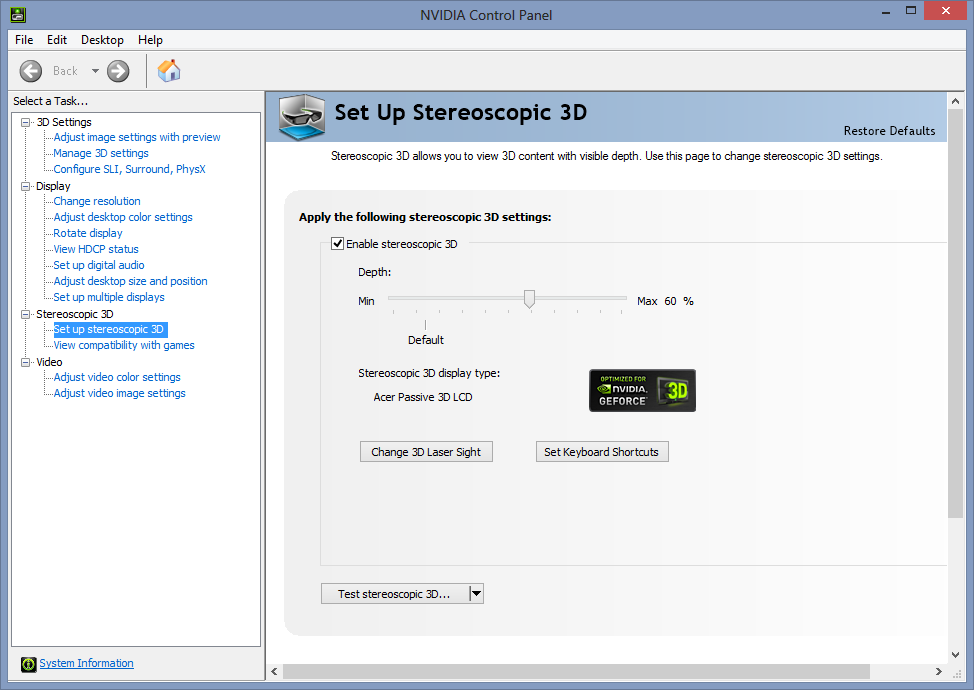
10 - In nvidia control panel, enable stereo 3D in games and test it at maximum resolution, 1920x1080


Note: please note you need to use your games at this resolution for them to work, this happens because the 3D vision, when in passive mode, it just arranges the lines on your TV for first line left eye, second right eye, third left, and so on. 
It might also be necessary to do a little surgery on your glasses by switching the eyes lenses, or you can use them upside down. This happens because Acer Monitors display the eyes per monitor line in a different way than LG.

I also found out that in recent drivers you don't even need to turn on the enablestereo.bat in the future when playing games, you just need it long enough to get your 3D Vision setup running.

Now on to configure your LG TV for best display, through trial and error I found out this config works

1 - Set whatever input you are using for your pc (say hdmi 1) to PC label, yeah, the labels on LG TV do more than just labeling, odd huh?!?

2 - Go to your TV setup menu > picture mode, set it  to expert 1 and now set it like this:

Backlight: 80
Contrast: 100
Brightness: 56
H Sharpness: 0
V Sharpness: 45
Color: 60

These are the settings I found worked best for me, you may try entering a 3D game and adapting it to reduce ghosting (yeah LG 3D TVs suffer a lot from that!)

The latest nvidia driver I had done this was 320.18 driver pack before making this post

Please let me know if this post helps you in some way here in the comments section